

...

Snippet Options in Odoo 19: How They Work in Website Builder

Businesses planning odoo erp migration in USA can use Odoo 19 snippet options to keep website layouts flexible while making backend upgrades and frontend improvements easier to manage.

Odoo 19 gives businesses a practical Website Builder that is tightly connected to the rest of the platform, and its building blocks, also called snippets, are a core part of that experience. In real projects, snippet options are what make those blocks flexible. They let a non technical user change layout, spacing, visibility, and styling from the editor panel instead of asking a developer for every small update. For teams investing in odoo custom development services in USA, this is one of the most useful ways to balance customization with day to day usability.

From a Byte Legions perspective, this matters to both developers and business owners. Developers want a clean, upgrade friendly structure. Business owners want a website team that can reuse content blocks and make fast page edits without breaking the layout. Odoo 19 supports that model by letting developers extend the Website Builder through theme files, custom snippets, assets, and website.snippet_options rather than editing core files.

Why Snippet Options Matter in Odoo 19 Website Projects

Snippet options matter because websites rarely stay static. A landing page may need a different card layout next week. A services page may need more spacing, a background change, or a hidden section for one campaign only. Without snippet options, every such request becomes a code change. With snippet options, many of those edits move into the Website Builder and can be handled in minutes. This reduces developer dependency while keeping the frontend customization controlled.

For business owners, that means faster publishing and lower maintenance friction. For developers, it means fewer risky hotfixes on live pages and a more reusable theme module. That is especially helpful when the same reusable content blocks appear across service pages, blog landing pages, and campaign pages. This is exactly the kind of practical flexibility Odoo’s Website Builder and theme system are designed to support.

What Snippets and Snippet Options Mean in Odoo Website Builder

In Odoo 19, building blocks are snippets. The documentation classifies them into structure blocks, which act like full rows or sections, and inner content blocks, which are used inside other blocks. These are the pieces users drag and drop while building pages.

The Difference Between a Snippet, a Building Block, and an Option

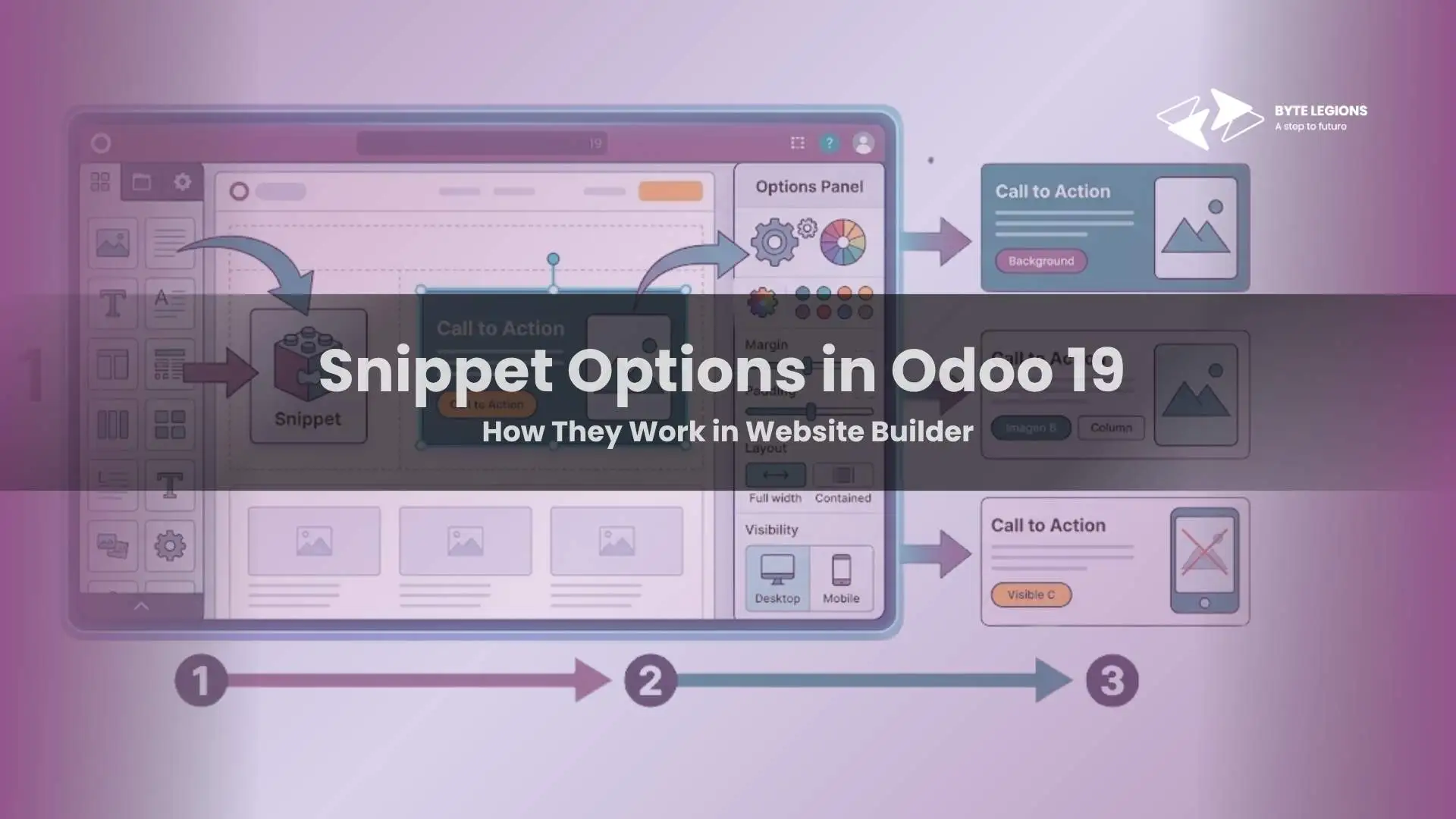
A snippet and a building block are effectively the same idea in Odoo’s website language. The snippet is the actual XML based content structure that appears on a page. The option is the control shown in the right panel of the editor. So the snippet is the block itself, while the snippet option is the interface that lets the user change that block’s layout or behavior.

How Odoo 19 Lets Users Edit Appearance and Behavior Without Touching Core Files

Odoo’s website theme documentation explicitly frames customization around extending the builder without touching Odoo core files, which helps preserve builder editing features and makes upgrades safer. That is the real value of snippet options. You can expose useful changes through the editor while keeping your custom logic inside your own module or theme.

How Snippet Options Work Behind the Scenes

Behind the scenes, snippet options are defined in XML and attached to selected elements through CSS style selectors. Odoo’s docs show that options can be added through a template inheriting website.snippet_options, and those options appear in the editor when the matching snippet is selected.

The Role of website.snippet_options in Custom Development

The standard pattern is to inherit website.snippet_options and insert your controls into it. Odoo’s documentation shows this exact approach, where a custom snippet option template is added through XPath and then bound to a class such as .s_airproof_snippet. That makes the option panel context aware, so the user only sees relevant controls when that block is selected.

<template id="my_snippet_options" inherit_id="website.snippet_options" name="My Snippet Options">   <xpath expr="." position="inside">     <div data-selector=".s_my_snippet">       <we-select string="Layout">          <we-button data-select-class="">Default</we-button>          <we-button data-select-class="s_my_snippet_alt">Alternate</we-button>       </we-select>     </div>   </xpath> </template>

This small pattern is powerful because it turns plain frontend classes into drag and drop editor controls. It is simple enough for developers to maintain, but flexible enough to support marketing and content teams.

Using data-selector, we-select, and we-button to Control Frontend Behavior

The standard file structure in Odoo 19 separates snippet views from frontend assets. The docs show a views/snippets area for files like options.xml and a snippet template XML file, plus a static/src/snippets/... area where JS, SCSS, XML, and options.js can live. That separation is important because it keeps structure, styles, and editor behavior organized inside the theme module.

XML Structure for Custom Snippet Templates

A normal snippet often uses a section wrapper with a unique class and builder attributes such as data-name and data-snippet. The docs also note that the section wrapper is standard for editable blocks and that unique classes help the system identify the snippet. This makes naming discipline important from the start.

How CSS Classes and Bootstrap Utilities Affect Website Builder Controls

Odoo 19 explicitly notes that some Bootstrap classes trigger Website Builder options. This is one reason smart developers lean on Bootstrap utilities for spacing, alignment, and responsive layout. When your option buttons add consistent utility classes, you get predictable visual output and simpler maintenance. If you need more advanced behavior, Odoo also provides website.assets_wysiwyg for JavaScript linked to Website Builder option behavior.

Real Business Use Cases for Snippet Options

In actual business work, snippet options are rarely about code elegance alone. They are about reducing page update time and keeping brand consistency across the site. A well designed block can be dropped into multiple pages and then adjusted through options rather than duplicated and manually edited each time.

Faster Landing Page Changes for Marketing Teams

Marketing teams often need to test hero sections, service cards, banners, or call to action layouts. Snippet options let them change spacing, layouts, image treatment, or visibility without requesting a full redeploy. That gives developers fewer interruption based tasks and gives marketing better control of the drag and drop editor.

Reusable Website Blocks for Service, eCommerce, and Corporate Pages

A business can build one custom snippet for testimonials, service highlights, pricing cards, or product feature rows and reuse it site wide. If you are already thinking about UI patterns and maintainable customization, our post on Customizing Odoo 19 UI for Better Team UX fits well with the same design mindset of reusability and cleaner user experience. The broader business value is consistency, faster content publishing, and less copy paste debt over time.

Common Mistakes Developers Make with Snippet Options

The most common problem is building a snippet that works once but is difficult to maintain. That usually happens when selectors are too broad, classes are named poorly, or the option logic is attached to a structure that keeps changing. Since options rely on selectors and target relationships, messy frontend markup quickly creates fragile behavior.

Nested Sections, Missing Attributes, and Poor Class Naming

Nested sections can confuse the editor and make option targeting harder. Missing unique classes reduce selector clarity. Weak naming also makes future debugging painful. Good snippet design starts with predictable wrappers and targetable child elements, not just visual output.

Why Editing Core Files Creates Long Term Maintenance Problems

Editing Odoo core files may seem faster at first, but it creates upgrade risk and can break the expected Website Builder compatibility system. Odoo’s own guidance is to customize through themes, snippets, and related assets so builder features remain preserved across future work.

Best Practices for Building Snippet Options in Odoo 19

The best approach is practical: keep selectors narrow, keep class names meaningful, use reusable Bootstrap classes where possible, and only add custom JavaScript when class based controls are not enough. Organize your XML, SCSS, and JS clearly inside the theme module. Also think like an editor user, not only like a developer. The options panel should feel obvious to the person updating content.

When to Use Standard Options vs Custom Options

Use standard options when spacing, alignment, visibility, and simple presentation can be handled by Odoo’s built in Website Builder behavior and Bootstrap driven classes. Use custom options when the block needs business specific layouts, conditional frontend behavior, or custom JavaScript tied to a snippet. That is the sweet spot for tailored website solutions that still stay manageable.

Conclusion

Snippet options in Odoo 19 are one of the best examples of smart website architecture. They give developers a structured, upgrade friendly way to expose useful controls inside the Website Builder, and they give business teams faster control over page presentation. When done well, they turn custom snippet development into a repeatable system instead of a collection of one off edits. For companies that want a website that is both editable and scalable, snippet options are worth investing in.

Book a consultation with Byte Legions if you want help designing reusable Odoo 19 snippets, cleaner Website Builder workflows, or a custom theme module that your team can actually manage.

Frequently Asked Questions (FAQs)

1. Are snippet options only useful for developers?

No. Developers create them, but business users, marketers, and content editors benefit most because they can update reusable content blocks from the editor panel without asking for code changes every time.

2. Can snippet options change behavior as well as styling?

Yes. Odoo documents both class based option controls and JavaScript binding through data-js, which means options can influence behavior, not just appearance.

3. Where should snippet option JavaScript go?

For Website Builder related option behavior, Odoo 19 points developers to website.assets_wysiwyg, while general frontend assets can go into web.assets_frontend.

4. Do snippet options help with upgrade safety?

They can, because the recommended pattern is to extend themes and builder assets without editing Odoo core files directly. That keeps customization cleaner and easier to maintain.

5. What is the first thing to get right in a custom snippet?

Start with clean structure: a unique snippet class, a predictable wrapper, and clear selectors. If the markup is sloppy, the options panel will be harder to manage later.

Visit our Odoo blog for more insights on how snippet options work in Odoo 19 Website Builder, from website.snippet_options to custom controls, business use cases, and developer best practices.

Businesses planning odoo erp migration in USA can use Odoo 19 snippet options to keep website layouts flexible while making backend upgrades and frontend improvements easier to manage.

Odoo 19 gives businesses a practical Website Builder that is tightly connected to the rest of the platform, and its building blocks, also called snippets, are a core part of that experience. In real projects, snippet options are what make those blocks flexible. They let a non technical user change layout, spacing, visibility, and styling from the editor panel instead of asking a developer for every small update. For teams investing in odoo custom development services in USA, this is one of the most useful ways to balance customization with day to day usability.

From a Byte Legions perspective, this matters to both developers and business owners. Developers want a clean, upgrade friendly structure. Business owners want a website team that can reuse content blocks and make fast page edits without breaking the layout. Odoo 19 supports that model by letting developers extend the Website Builder through theme files, custom snippets, assets, and website.snippet_options rather than editing core files.

Why Snippet Options Matter in Odoo 19 Website Projects

Snippet options matter because websites rarely stay static. A landing page may need a different card layout next week. A services page may need more spacing, a background change, or a hidden section for one campaign only. Without snippet options, every such request becomes a code change. With snippet options, many of those edits move into the Website Builder and can be handled in minutes. This reduces developer dependency while keeping the frontend customization controlled.

For business owners, that means faster publishing and lower maintenance friction. For developers, it means fewer risky hotfixes on live pages and a more reusable theme module. That is especially helpful when the same reusable content blocks appear across service pages, blog landing pages, and campaign pages. This is exactly the kind of practical flexibility Odoo’s Website Builder and theme system are designed to support.

What Snippets and Snippet Options Mean in Odoo Website Builder

In Odoo 19, building blocks are snippets. The documentation classifies them into structure blocks, which act like full rows or sections, and inner content blocks, which are used inside other blocks. These are the pieces users drag and drop while building pages.

The Difference Between a Snippet, a Building Block, and an Option

A snippet and a building block are effectively the same idea in Odoo’s website language. The snippet is the actual XML based content structure that appears on a page. The option is the control shown in the right panel of the editor. So the snippet is the block itself, while the snippet option is the interface that lets the user change that block’s layout or behavior.

How Odoo 19 Lets Users Edit Appearance and Behavior Without Touching Core Files

Odoo’s website theme documentation explicitly frames customization around extending the builder without touching Odoo core files, which helps preserve builder editing features and makes upgrades safer. That is the real value of snippet options. You can expose useful changes through the editor while keeping your custom logic inside your own module or theme.

How Snippet Options Work Behind the Scenes

Behind the scenes, snippet options are defined in XML and attached to selected elements through CSS style selectors. Odoo’s docs show that options can be added through a template inheriting website.snippet_options, and those options appear in the editor when the matching snippet is selected.

The Role of website.snippet_options in Custom Development

The standard pattern is to inherit website.snippet_options and insert your controls into it. Odoo’s documentation shows this exact approach, where a custom snippet option template is added through XPath and then bound to a class such as .s_airproof_snippet. That makes the option panel context aware, so the user only sees relevant controls when that block is selected.

<template id="my_snippet_options" inherit_id="website.snippet_options" name="My Snippet Options">   <xpath expr="." position="inside">     <div data-selector=".s_my_snippet">       <we-select string="Layout">          <we-button data-select-class="">Default</we-button>          <we-button data-select-class="s_my_snippet_alt">Alternate</we-button>       </we-select>     </div>   </xpath> </template>

This small pattern is powerful because it turns plain frontend classes into drag and drop editor controls. It is simple enough for developers to maintain, but flexible enough to support marketing and content teams.

Using data-selector, we-select, and we-button to Control Frontend Behavior

The standard file structure in Odoo 19 separates snippet views from frontend assets. The docs show a views/snippets area for files like options.xml and a snippet template XML file, plus a static/src/snippets/... area where JS, SCSS, XML, and options.js can live. That separation is important because it keeps structure, styles, and editor behavior organized inside the theme module.

XML Structure for Custom Snippet Templates

A normal snippet often uses a section wrapper with a unique class and builder attributes such as data-name and data-snippet. The docs also note that the section wrapper is standard for editable blocks and that unique classes help the system identify the snippet. This makes naming discipline important from the start.

How CSS Classes and Bootstrap Utilities Affect Website Builder Controls

Odoo 19 explicitly notes that some Bootstrap classes trigger Website Builder options. This is one reason smart developers lean on Bootstrap utilities for spacing, alignment, and responsive layout. When your option buttons add consistent utility classes, you get predictable visual output and simpler maintenance. If you need more advanced behavior, Odoo also provides website.assets_wysiwyg for JavaScript linked to Website Builder option behavior.

Real Business Use Cases for Snippet Options

In actual business work, snippet options are rarely about code elegance alone. They are about reducing page update time and keeping brand consistency across the site. A well designed block can be dropped into multiple pages and then adjusted through options rather than duplicated and manually edited each time.

Faster Landing Page Changes for Marketing Teams

Marketing teams often need to test hero sections, service cards, banners, or call to action layouts. Snippet options let them change spacing, layouts, image treatment, or visibility without requesting a full redeploy. That gives developers fewer interruption based tasks and gives marketing better control of the drag and drop editor.

Reusable Website Blocks for Service, eCommerce, and Corporate Pages

A business can build one custom snippet for testimonials, service highlights, pricing cards, or product feature rows and reuse it site wide. If you are already thinking about UI patterns and maintainable customization, our post on Customizing Odoo 19 UI for Better Team UX fits well with the same design mindset of reusability and cleaner user experience. The broader business value is consistency, faster content publishing, and less copy paste debt over time.

Common Mistakes Developers Make with Snippet Options

The most common problem is building a snippet that works once but is difficult to maintain. That usually happens when selectors are too broad, classes are named poorly, or the option logic is attached to a structure that keeps changing. Since options rely on selectors and target relationships, messy frontend markup quickly creates fragile behavior.

Nested Sections, Missing Attributes, and Poor Class Naming

Nested sections can confuse the editor and make option targeting harder. Missing unique classes reduce selector clarity. Weak naming also makes future debugging painful. Good snippet design starts with predictable wrappers and targetable child elements, not just visual output.

Why Editing Core Files Creates Long Term Maintenance Problems

Editing Odoo core files may seem faster at first, but it creates upgrade risk and can break the expected Website Builder compatibility system. Odoo’s own guidance is to customize through themes, snippets, and related assets so builder features remain preserved across future work.

Best Practices for Building Snippet Options in Odoo 19

The best approach is practical: keep selectors narrow, keep class names meaningful, use reusable Bootstrap classes where possible, and only add custom JavaScript when class based controls are not enough. Organize your XML, SCSS, and JS clearly inside the theme module. Also think like an editor user, not only like a developer. The options panel should feel obvious to the person updating content.

When to Use Standard Options vs Custom Options

Use standard options when spacing, alignment, visibility, and simple presentation can be handled by Odoo’s built in Website Builder behavior and Bootstrap driven classes. Use custom options when the block needs business specific layouts, conditional frontend behavior, or custom JavaScript tied to a snippet. That is the sweet spot for tailored website solutions that still stay manageable.

Conclusion

Snippet options in Odoo 19 are one of the best examples of smart website architecture. They give developers a structured, upgrade friendly way to expose useful controls inside the Website Builder, and they give business teams faster control over page presentation. When done well, they turn custom snippet development into a repeatable system instead of a collection of one off edits. For companies that want a website that is both editable and scalable, snippet options are worth investing in.

Book a consultation with Byte Legions if you want help designing reusable Odoo 19 snippets, cleaner Website Builder workflows, or a custom theme module that your team can actually manage.

Frequently Asked Questions (FAQs)

1. Are snippet options only useful for developers?

No. Developers create them, but business users, marketers, and content editors benefit most because they can update reusable content blocks from the editor panel without asking for code changes every time.

2. Can snippet options change behavior as well as styling?

Yes. Odoo documents both class based option controls and JavaScript binding through data-js, which means options can influence behavior, not just appearance.

3. Where should snippet option JavaScript go?

For Website Builder related option behavior, Odoo 19 points developers to website.assets_wysiwyg, while general frontend assets can go into web.assets_frontend.

4. Do snippet options help with upgrade safety?

They can, because the recommended pattern is to extend themes and builder assets without editing Odoo core files directly. That keeps customization cleaner and easier to maintain.

5. What is the first thing to get right in a custom snippet?

Start with clean structure: a unique snippet class, a predictable wrapper, and clear selectors. If the markup is sloppy, the options panel will be harder to manage later.

Visit our Odoo blog for more insights on how snippet options work in Odoo 19 Website Builder, from website.snippet_options to custom controls, business use cases, and developer best practices.

Comments are closed